Toolbar Widget
Toolbars
The toolbar widget allows the users to create and use toolbars to quickly access action that are available in Stellar.
Toolbars can be used to streamline specific workflows by bringing actions that would otherwise require accessing several submenus at one click distance.

Loading Toolbars
- To add an existing Toolbar to a Layout go to Settings → Widgets → Toolbars
- Click on the yellow Plus button to add a new toolbar entry.
- In Toolbar Configuration Browse for a Toolbar
My Toolbars - Locally stored Toolbars
System Toolbars - Default list of Toolbars in Stellar (cannot be modified)
Company Toolbars - Available only for users which are part of the company.
Select the Toolbar and then press OK → Press Save
This will add the Toolbar to the current Layout. See Here on how to edit and save Layouts ### Link to Layouts page
Creating a Toolbar
Settings → Toolbars → My Toolbars - to create a Local Toolbar
Settings → Toolbars → Company Toolbars - to create a Company Toolbar
Click on New Toolbar → Name your Toolbar ( do not remove the .json ending) and then press OK.
Editing a Toolbar
Settings → Toolbars → My Toolbars - to edit a Local Toolbar → Click Pencil 
Settings → Toolbars → Company Toolbars - to edit a Company Toolbar → Click Pencil
Since we are creating the toolbar from scratch, the page will be empty.
Configuring the Toolbar
 - to configure the toolbar details
| Option | Description |
|---|---|
| Name | Your toolbar name |
| Description | Your toolbar description |
| Theme | Select either the Light or Dark theme |
| Icon | Select one of the icons from the drop down |
 - to add a new item to the toolbar
| Option | Description |
|---|---|
| Item Type | Button - one action button  |
Menu - drop down menu that can be used to group actions  | |
Divider - to separate groups of buttons  | |
| Action | Select one of the actions from the list - Hint - start typing to get a filtered list |
| Icon | Select one o the icons from the list - Hint - there is a search option in the Icon selector |
| Label | Text label for the entry |
| Priority | Smaller priority items will be hidden and added to the menu button when toolbar does not have enough space |
List of available actions
| Action | Select one of the actions from the list |
|---|---|
| Check | if the active subtitle editor is loaded and return it - external |
| Decrease | variable speed play |
| Edit | Add a em-dash (long hyphen) note character at current cursor position |
| Edit | Add a musical note character at current cursor position |
| Edit | add or modify the start time for a part of a dubbing title. |
| Edit | Assign Current Role to Current Title - Dubbing files only |
| Edit | Box style - ghost boxed |
| Edit | Box style - ghost striped |
| Edit | Box style - solid boxed |
| Edit | Box style - solid striped |
| Edit | Box style - unboxed |
| Edit | capture current media time to current title incue |
| Edit | capture current media time to current title incue keeping title duration |
| Edit | capture current media time to current title incue without interval check |
| Edit | capture current media time to current title outcue |
| Edit | capture current media time to current title outcue without interval check |
| Edit | Clear all text of current title |
| Edit | Clear contents of current row - but keep row |
| Edit | clear style - Apply the default color, box, outline |
| Edit | clear the start time for a part of a dubbing title. |
| Edit | colour the background of the subtitle text - Black |
| Edit | colour the background of the subtitle text - Blue |
| Edit | colour the background of the subtitle text - Cyan |
| Edit | colour the background of the subtitle text - Green |
| Edit | colour the background of the subtitle text - Magenta |
| Edit | colour the background of the subtitle text - Red |
| Edit | colour the background of the subtitle text - White |
| Edit | colour the background of the subtitle text - Yellow |
| Edit | colour the selected text - Black |
| Edit | colour the selected text - Blue |
| Edit | colour the selected text - Cyan |
| Edit | colour the selected text - Green |
| Edit | colour the selected text - Magneta |
| Edit | colour the selected text - Red |
| Edit | colour the selected text - White |
| Edit | colour the selected text - Yellow |
| Edit | copy marked titles |
| Edit | cut marked titles |
| Edit | cycle select backwards through text/timecode entries for current subtitle |
| Edit | cycle select through text/timecode entries for current subtitle |
| Edit | Decrease Current Title incue by one frame |
| Edit | Decrease Current Title incue by one frame - and maintain gap by moving outcue of previous Title |
| Edit | Decrease Current Title outcue by one frame |
| Edit | Decrease Current Title outcue by one frame - and maintain gap by moving incue of next Title |
| Edit | Delete current row |
| Edit | Delete current title |
| Edit | Delete from cursor to end of row |
| Edit | Delete from cursor to end of title |
| Edit | delete the current title |
| Edit | display list of backup files for the current text column |
| Edit | exit from a cue edit |
| Edit | goto end of media, goto subtitle which contains or is after last media time |
| Edit | goto first subtitle in current column |
| Edit | goto first subtitle in current column and seek media to incue |
| Edit | goto last subtitle in current column |
| Edit | goto last subtitle in current column and seek media to incue |
| Edit | goto next subtitle in highlighted column |
| Edit | goto next title in current column |
| Edit | goto next title in current column, seek media to incue, and place cursor in edit box |
| Edit | goto next title, and seek media to incue |
| Edit | goto next title, seek media to incue, and play |
| Edit | goto previous subtitle in highlighted column |
| Edit | goto previous title in current column |
| Edit | goto previous title in current column, seek media to incue, and place cursor in edit box |
| Edit | goto previous title, and seek media to incue |
| Edit | goto previous title, seek media to incue, and play |
| Edit | goto start of media, goto subtitle which contains or is after first media time |
| Edit | if cursor is at start of title, merge with title above. If cursor is at end of title, merge with title below |
| Edit | Increase Current Title incue by one frame |
| Edit | Increase Current Title incue by one frame - and maintain gap by moving outcue of previous Title |
| Edit | Increase Current Title outcue by one frame |
| Edit | Increase Current Title outcue by one frame - and maintain gap by moving incue of next Title |
| Edit | insert a title after the current title, capturing incue from current media time or defaulting to minimum interval from outcue of current |
| Edit | insert a title after the current title, capturing incue from current media time or defaulting to minimum interval from outcue of current with no minimum gap |
| Edit | insert a title before the current title |
| Edit | insert subtitle zero if not already present |
| Edit | jump cursor to current subtitle text |
| Edit | jump to subtitle which contains or is after current media time in current column |
| Edit | jump to subtitle which contains or is after current media time in current column - external |
| Edit | mark all titles |
| Edit | Merges current subtitle text with the next subtitle |
| Edit | Merges current subtitle text with the previous subtitle |
| Edit | Move all text after the cursor to the beginning of the next title - cursor in subtitle box |
| Edit | Move all text before the cursor to the end of the previous title - cursor in subtitle box |
| Edit | move current subtitle down a bit |
| Edit | move current subtitle down a line |
| Edit | move current subtitle up a bit |
| Edit | move current subtitle up a line |
| Edit | move left positioned row one step to the left |
| Edit | move left positioned subtitle one step to the left |
| Edit | move left positioned subtitle one step to the right |
| Edit | move left positoned row one step to the right |
| Edit | move the first word of the current row to the end of the previous row - regardless of cursor position in the row (cursor present) |
| Edit | move the first word of the current title to the end of the previous title - regardless of cursor position in the title (cursor present) |
| Edit | move the first word of the Next title to the end of the current title- regardless of cursor position in the row (cursor present) |
| Edit | Move the incue of the next title to be the outcue of the current title plus min gap |
| Edit | move the last word of the current row to the beginning of the next row - regardless of cursor position in the row (cursor present) |
| Edit | move the last word of the current title to the beginning of the next title - regardless of cursor position in the title (cursor present) |
| Edit | move the last word of the Previous title to the start of the current title - regardless of cursor position in the row (cursor present) |
| Edit | Move the outcue of the previous title to be the incue of the current title minus min gap |
| Edit | open Go To popup dialog with cursor in subtitle number box |
| Edit | open Go To popup dialog with cursor in Timecode box |
| Edit | open Style Profile selection dialog |
| Edit | page down current column |
| Edit | page down current column and seek media to incue |
| Edit | page up current column |
| Edit | page up current column and seek media to incue |
| Edit | paste copied or cut titles |
| Edit | position the current row in the center |
| Edit | position the current row to the left |
| Edit | position the current row to the right |
| Edit | position the subtitle in the center and justify centre |
| Edit | Position the subtitle in the center and justify left (centre left) |
| Edit | position the subtitle to the left and justify left |
| Edit | position the subtitle to the right and justify right |
| Edit | Recalculate the outcue of the current title based on current incue, reading speed and text length |
| Edit | rehearse mode: capture current media time to current title incue |
| Edit | rehearse mode: capture current media time to current title outcue |
| Edit | Renumber titles |
| Edit | return to text editing |
| Edit | seek media to incue of current title |
| Edit | seek media to incue of current title and pause |
| Edit | seek media to incue of current title and play |
| Edit | seek media to incue of current title, and play |
| Edit | seek media to outcue of current title |
| Edit | seek media to outcue of current title and pause |
| Edit | seek media to outcue of current title and play |
| Edit | Set current Incue to be at min gap after previous outcue |
| Edit | Set current outcue to be at min gap before next incue |
| Edit | Set Incue value from current time-code and offset all next titles |
| Edit | Set Incue value from current time-code and previous Outcue at minimum interval |
| Edit | Set Incue value from current time-code and snap to the previous shot change taking into account default gap between incue and shot change |
| Edit | Set Outcue from current time-code and next Incue at minimum interval |
| Edit | Set outcue of current subtitle and then, if space, insert a new subtitle after the current title |
| Edit | Set Outcue value from current time-code and snap to the next shot change taking into account default gap between outcue and shot change |
| Edit | split the current title at the cursor, creating a new title |
| Edit | toggle comments editor |
| Edit | toggle comments editor for all titles |
| Edit | Toggle current row text italic |
| Edit | Toggle current row Text uppercase/lowercase |
| Edit | Toggle current subtitle text italic |
| Edit | Toggle current title Text uppercase/lowercase |
| Edit | Toggle drop shadow on/off |
| Edit | toggle marking on or off for selected title |
| Edit | Toggle outline on/off |
| Edit | Toggle selected Text uppercase/lowercase |
| Edit | toggle subtitle boxing |
| Edit | toggle the font on the current line between font 1 and 2 |
| Edit | vertically align the current subtitle to the middle |
| Edit | vertically position the current subtitle at the bottom |
| Edit | vertically position the current subtitle at the top |
| Increase | variable speed play |
| Jump | to end of media |
| Jump | to next shot change |
| Jump | to previous shot change |
| Jump | to start of media |
| Loop | current title in rehearse mode |
| Open | recut dialog |
| Open | the Print dialog |
| Timecode | copy current media timecode to clipboard |
| Timecode | jump to timecode widget, editing seconds value |
| Timeline | capture current media time to current title incue |
| Timeline | capture current media time to current title incue keeping title duration |
| Timeline | capture current media time to current title incue without interval check |
| Timeline | capture current media time to current title outcue |
| Timeline | capture current media time to current title outcue without interval check |
| Timeline | copy marked titles |
| Timeline | cut marked titles |
| Timeline | delete shot change at current media time |
| Timeline | delete the current title |
| Timeline | insert a title after the current title, capturing incue from current media time or defaulting to minimum interval after outcue of current |
| Timeline | insert a title after the current title, capturing incue from current media time or defaulting to minimum interval after outcue of current with no minimum gap |
| Timeline | insert a title before the current title |
| Timeline | insert shot change at current media time |
| Timeline | mark all titles |
| Timeline | Mix, trim and apply effects for all active audio takes to produce a single new conformed audio for this title. Also, match title with conformed audio timing |
| Timeline | Mix, trim, pad and apply effects for all active audio takes to produce a single new conformed audio for this title |
| Timeline | paste copied or cut titles |
| Timeline | set loud fade level - default fade level from profile minus 6dB |
| Timeline | set mute fade level (-50dB) |
| Timeline | set normal fade level - default fade level from profile |
| Timeline | set quiet fade level - default fade level from profile plus 5dB |
| Timeline | toggle marking on or off for selected title |
| AD | Record endless |
| AD | Record loop |
| AD | set end record time to current time |
| AD | set start record time to current time |
| AD | Start or Abort recording for the current AD title |
| AD | Stop and store recording for the current AD title |
| Add | existing text file to Task |
| Add | new text file to Task |
| Close | currentTask or Local Project |
| Open | Audio Job Export Dialog |
| Open | Audio Job Import Dialog |
| Open | existing text file in a blank Task |
| Open | File Status Dialog |
| Open | Layout Load Dialog |
| Open | Media Import Dialog |
| Open | Pro Tools Export Dialog |
| Open | Task Export Dialog |
| Open | Task Finder Dialog |
| Open | Task Import Dialog |
| Open | Task Properties Dialog |
| Open | Task Save as Dialog |
| Open | Script File Export Dialog |
| Open | Script Import Dialog |
| Open | selected text in Google Translate |
| Open | Text File Export Dialog |
| Open | Text File Import Dialog |
| Open | Top Navigation Menu Item |
| Open | Translate Dialog |
| Project | Add a new blank file to the current Project |
| Project | Add an existing subtitle file to the current Project |
| Project | Duplicate an existing subtitle file to the current Project |
| Project | Open a saved Project |
| Redo | |
| Save | changes |
| Script | Overlay: Toggle visibility |
| Search | selected text in Google |
| Search | selected text in Wikipedia |
| Search | selected text on IMDB |
| Search | open find dialog |
| Search | open replace dialog |
| Send | a dummy input to the active editor to trigger a save - external |
| Show/Hide | Dashboard |
| Start | play at preset speed |
| Step | back ‘large step size’ |
| Step | back ‘large step size’ and play |
| Step | back ‘small step size’ |
| Step | back 1 frame |
| Step | back 1 frame and pause |
| Step | fwd ‘large step size’ |
| Step | fwd ‘small step size’ |
| Step | fwd 1 frame |
| Step | fwd 1 frame and pause |
| Synthetic Voices | Render voice to all titles in current file |
| Synthetic Voices | Render voice to all titles with no audio in current file |
| Synthetic Voices | Render voice to current title |
| Toggle | ignore Alt+Letter hotkeys setting |
| Toggle | play/pause backwards |
| Toggle | play/pause forwards - Edit on Pause if enabled in media widget |
| Toggle | play/pause forwards (edit on pause = opposite of current media widget setting) |
| Toggle | play/pause forwards (edit on pause, regardless of media widget setting) |
| Toggle | play/pause forwards (no edit on pause, regardless of media widget setting) |
| Toggle | play/pause in rehearse mode |
| Toggle | Rehearse mode |
| Toggle | Toolbar Widget linked to Hotkey 1 |
| Toggle | Toolbar Widget linked to Hotkey 2 |
| Toggle | Toolbar Widget linked to Hotkey 3 |
| Toggle | Toolbar Widget linked to Hotkey 4 |
| Toggle | Toolbar Widget linked to Hotkey 5 |
| Toggle | Toolbar Widget linked to Hotkey 6 |
| Toggle | Toolbar Widget linked to Hotkey 7 |
| Toggle | Toolbar Widget linked to Hotkey 8 |
| Toggle | Toolbar Widget linked to Hotkey 9 |
| Undo | |
| Video | Toggle full screen mode |
Adjusting the Toolbar Items
Once you have added several items to your toolbar, you can:
- re-arrange them by clicking on the
 icon.
icon. - edit an item by clicking on the

icon
- remove an item by clicking on the
 icon
icon
Changing Toolbars
To change the toolbar → Right Click on the Toolbar → Change Toolbar

Select the Toolbar you want and then press OK
Adding more toolbars
Settings → Widgets → Toolbar
To add a new Toolbar, please press the plus button
This will add a new toolbar that can be configured based on your needs.
To add it to the layout, please press save. You will now see the new Toolbar appear in your layout.
Toolbar Types
Widget - it will appear as a widget in the UI.

Pop-out - will appear as a floating window on top of the other widgets
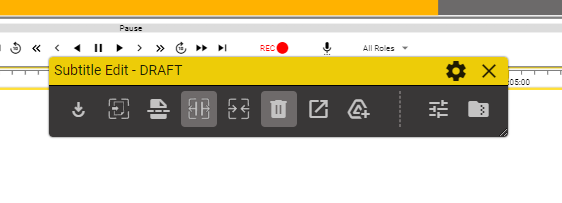
- Can be accessed using the Hotkey of your choice - set in the settings of the Toolbar.
- Can be accessed by using the button in the top bar

Navigation Menu - will be displayed as a drop down menu
Default Toolbar Toggle Hotkeys
There are 9 hotkeys toggles which can be used to show/hide a toolbar when the pop-out setting is enabled.
| Hotkey | Value |
|---|---|
| Toggle Toolbar Widget linked to Hotkey 1 | Ctrl + Numpad 1 |
| Toggle Toolbar Widget linked to Hotkey 2 | Ctrl + Numpad 2 |
| Toggle Toolbar Widget linked to Hotkey 3 | Ctrl + Numpad 3 |
| Toggle Toolbar Widget linked to Hotkey 4 | Ctrl + Numpad 4 |
| Toggle Toolbar Widget linked to Hotkey 5 | Ctrl + Numpad 5 |
| Toggle Toolbar Widget linked to Hotkey 6 | Ctrl + Numpad 6 |
| Toggle Toolbar Widget linked to Hotkey 7 | Ctrl + Numpad 7 |
| Toggle Toolbar Widget linked to Hotkey 8 | Ctrl + Numpad 8 |
| Toggle Toolbar Widget linked to Hotkey 9 | Ctrl + Numpad 9 |