Logging In and Using Stellar Create
Logging In
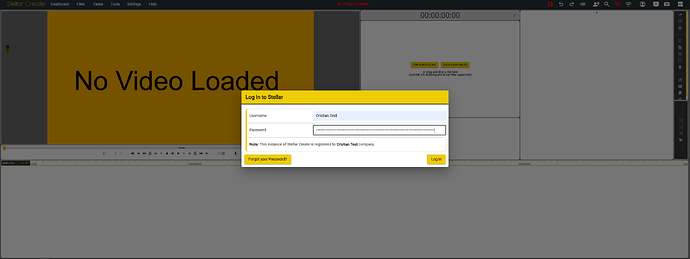
- Once the device has started, Stellar Create will open in your default browser.
- Please use the Username and Password that correspond to your account.
- ### Update with new graphic.
Tutorials
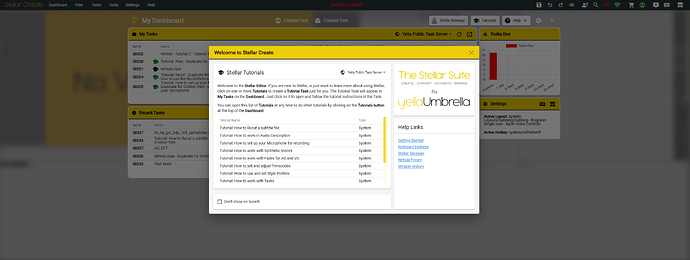
- The first window that will appear will be the Tutorial Tasks. (You can hide this by checking the box near "Don't show at launch").
- Depending on the company that has sent you the task, they might have their own set of Tutorial tasks. These will show Company in the Type column.
- To load a tutorial task, click one and wait for it to load.
Dashboard
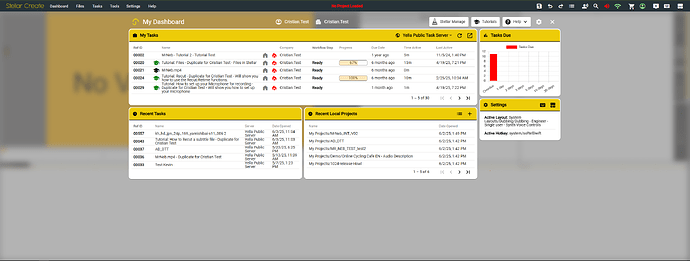
- The dashboard contains all information related to the Tasks that have been assigned or created by you.
- Open the Dashboard from the menu in the top-left of the screen.

- Alternatively, press Alt + Ctrl + D.
My Tasks
This panel contains all the most urgent Tasks that have been assigned to your account as well as details about each of them.
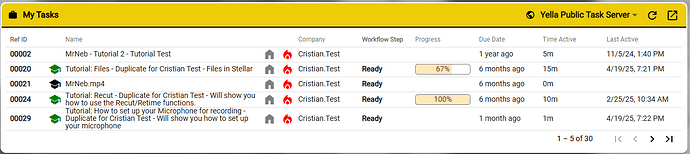
You can get a full list of all the tasks assigned to you by clicking on "More Tasks."
Recent Tasks
This panel contains a list of your recently opened Tasks.
Click on a Task name to load it.
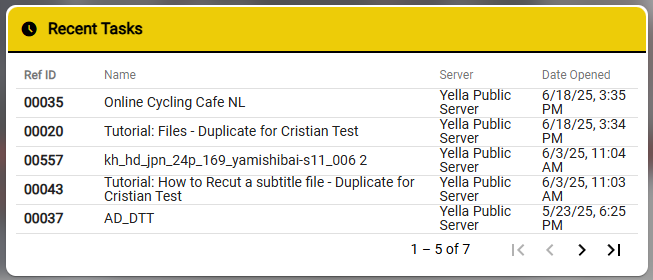
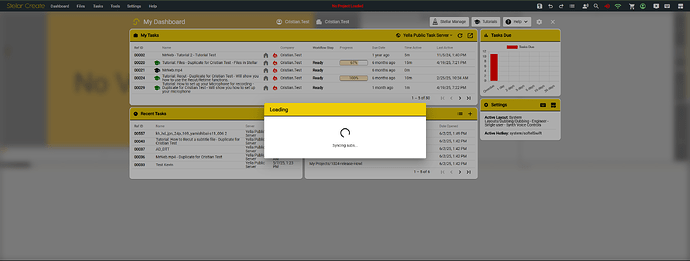
Loading a Task
- Clicking a task in the Dashboard starts loading its assets: proxy media, wave file, text files, etc.
- Some tasks may be stream-only, meaning proxy media is streamed (not downloaded). Ensure your internet is fast enough.
Task Example
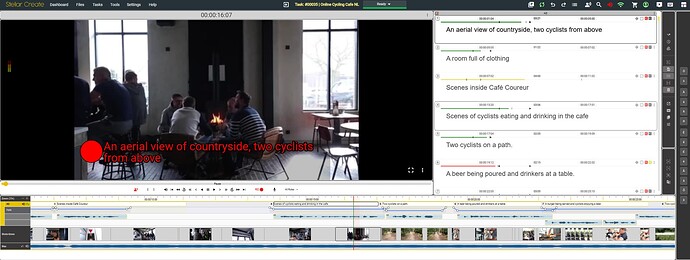
Depending on task type (Audio Description, Dubbing, Subtitling, etc.), the user interface may differ.
Work Area
Stellar Create has a configurable, widget-based UI.
When you receive a task, its layout will already be applied (different layouts for AD, Subtitling, Dubbing, etc.).
There are four major areas in each Layout:
These may vary in size and position or may not even be present, depending on the Layout loaded.
Hotkeys
Stellar Create has a customizable hotkey system.
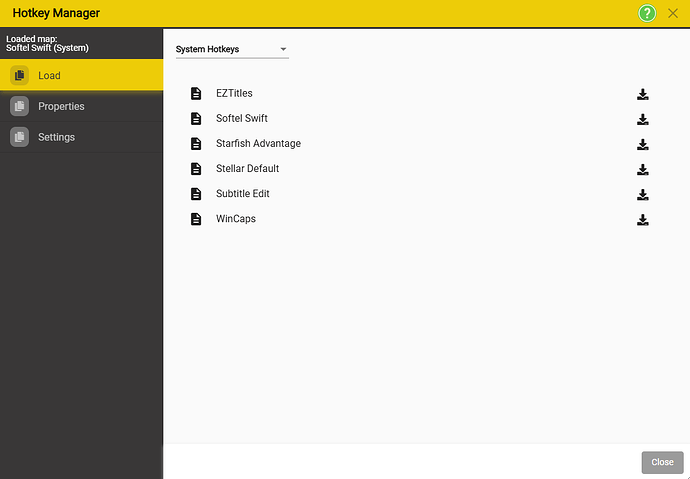
You can load maps that mimic EZTitles, Softel Swift, Starfish Advantage, Subtitle Edit, Spot and WinCaps.
If you’re new to Stellar Create, start by loading a familiar one.
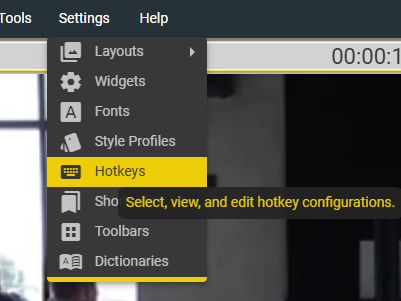
Go to Settings → Hotkeys.
Select the Load tab.
Click the Download icon  for the hotkey map you want.
Once applied, press Close.