Stellar Top Bar
Situated in the top part of the Stellar UI, this area contains a multitude of menus, buttons and status details.
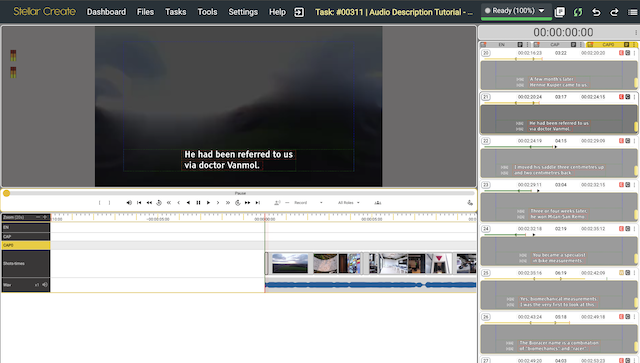
The top bar is split into 3 areas:
Menu Area
- Drop-down menus

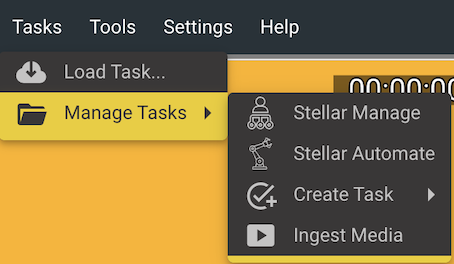
Files - Opens the Stellar Tasks Menu which gives you access to things such as Current Task / Open Task / Manage Tasks
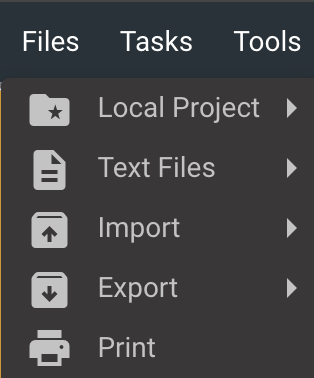
Tasks - Opens the Stellar Files Menu which gives you access to things such as Import/Export, Layouts, Project Actions and Text Files Actions
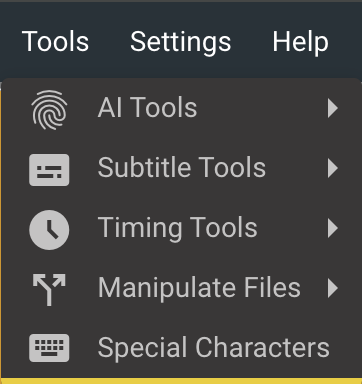
Tools - Opens the Stellar Tools Menu - depending on the plugins which are activated, this menu may contains several sub-menus: AI Tools, Subtitle Tools, Timing Tools, Manipulate Files, and Special Characters.
Settings - Give you access to various types of setting menu in Stellar.
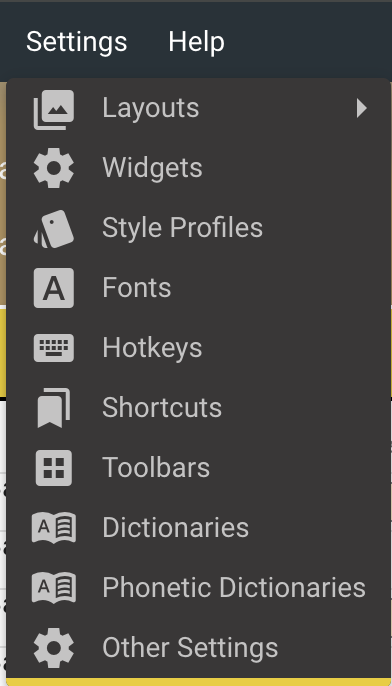
Widget Settings - Global list of available Widgets
Fonts Manger - Adjust Font related settings.
Profile Manager - Adjust Profile related settings.
Hotkey Settings - Adjust Hotkey related settings.
Shortcuts - Change Shortcut related settings.
Help - Various help related links.
Details Area

Current Workflow Step and progress - Started
Current Task - Online Cycling Café NL-VO
Command Area

The command area is the toolbar strip at top right half of Stellar. It provides one-click access to core editing and system functions — undo/redo, sync status, find & replace, process monitoring, audio/volume controls, account and login management, rehearse mode, hotkey mapping, and layout switching.
| Name | Description | Combination |
|---|---|---|
Project Properties  | Opens the project/task files properties | - |
Undo & Redo   | Undo or redo (after undo) the last action. | Ctrl+ Z and Ctrl+ Y |
| Sync Indicator  | Shows the status of all changes to the current open text files.
If Yellow then there are saves outstanding.
If Green then all saves have been completed.
All saving of text and audio is automatic. | - |
Process Status  | Shows a list of background processes. | - |
|---|
| Volume Manager  | Visible if the Volume Manager Widget is enabled.
Speaker Icon is Red — this indicates an error with one of the audio inputs. E.g. no microphone selected. | - |
| My Account  | Open your Nebula account page in a new tab.
Only visible for PayGo users. | - |
| Log In / Log Out  | To use the Task list and other centralised features you need to log into your Nebula account.
Do this with the username and password in your original sign-up email.
The Icon is green when you are logged in. | - |
Rehearse  | Enable/Disable Rehearse Mode | - |
|---|
| Hotkey Map  | Hover over to see the current hotkey mapping loaded.
Hotkey Maps allow you to customise the keyboard and
mouse controls to make Stellar work the way you want. Click to open the Hotkey Settings control. | - |
| Layout  | Layout Mode switch – Turn Layout Mode on and off.
Yellow when Layout mode is on.
Tip: Pressing Esc will exit Layout mode and abandon any changes. | - |