Find & Replace
To Find and Replace text in any text file either:
- Click on the Find Icon in the top bar.

Or:
- Press Ctrl+ F to Find
- Press Ctrl+ H to find and replace
Find

-
Enter text to find
-
Any highlighted text will automatically be entered as the Find text.
-
Any text found in any visible subtitle or script box will be highlighted.
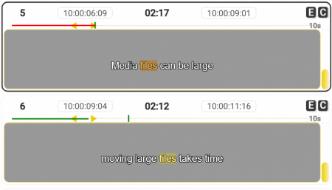
-
Step through multiple instance of the search text by:
-
Using the up and down arrows on the keyboard
-
By clicking the up and down arrows on the find dialog
-
By pressing Enter on the keyboard
| Icon | Action | Description |
|---|---|---|
 | Find only in the current Text file | Only text in the currently selected text file will be searched. |
 | Find text in all Text files | Search in all the Text files in this Task. |
 | Match Case when searching | |
 | Only match whole words |
Replace
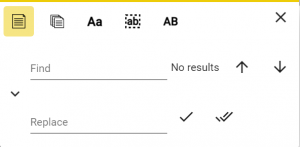
- To show the Replace options either:
- Press Ctrl+ H on the keyboard
- Click on the > symbol in the Find dialog.
- Press the Tab key on the keyboard
- Enter the Replacement text
- To replace a single occurrence
- click on the single tick icon
- Press Enter on the keyboard
- To replace all occurrences In one or all files as selected using the icons above)
- Click on the double tick icon